Archiving file attachments
If an Event includes file attachments, e.g. images, documents, audio, etc., you must send the files to the PUT /files endpoint BEFORE you reference them in the POST /oc-event request.
If you are unable to upload the file to your Global Relay Archive, refer to the instructions in Referencing external file locations.
For each attachment, make a request to the PUT /files endpoint, with your chosen fileKey included as a URL path parameter:
curl -X PUT "eventfeed.api.globalrelay.com/v2/files/default/documents/Q3-report-2023.pdf" \
 -H "Authorization: Bearer <YOUR_ACCESS_TOKEN>" \
 -H "Content-Type: <VALID_CONTENT_TYPE>" \
 -T "<PATH_TO_FILE>"
If you use the same fileKey for multiple requests, the API returns a 200 success response, and the original file is replaced with the new version specified in the latest request.
You must include /default in the URL path before the file name. The path from default onward, e.g. default/documents/Q3-report-2023.pdf, will be the fileKey value you reference in the PUT /files endpoint.
Handling different file types
The file should be sent as binary data in the body of the PUT request, and you should include a Content-Type header with a standard MIME type describing the format of the contents.
If the file type is unknown, you can use the generic application/octet-stream type; however, the file type will not be obvious to a user of the Archive and they may not be able to open the file.
A Content-Length header is not required; however, if you send an incorrect value, only the amount of data specified in the header will be captured, which could result in incomplete data being archived. As per RFC 9110, the Content-Length should be the uncompressed, decrypted file size as a decimal, non-negative integer number of octets.
The /files endpoint supports files up to 1.0GB in size. If you send a file larger than this, the API returns a 400 error.
Referencing uploaded files in your Event requests
Once you receive a 200 success response from the PUT /files endpoint for all files referenced in the Event payload, make a request to the POST /oc-event endpoint referencing the files in the relevant object.
It’s essential that the fileKey in this request matches the fileKey uploaded via the PUT /files endpoint.
If you supply a fileKey which is not found in your Archive, the POST /oc-event request will return a 400 error response and the associated Event data will not be archived.
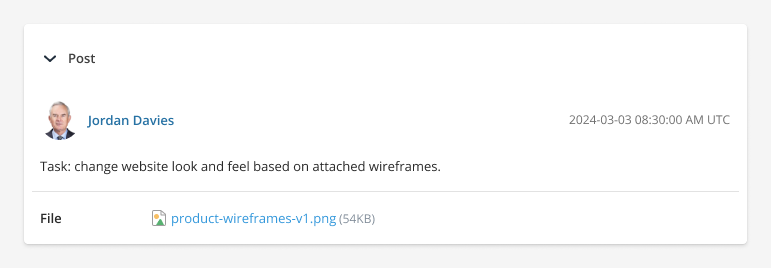
For example, Jordan created a new Jira ticket with an image attached to the body of the text:
{
  "events": [
    {
      "eventTime": "2024-01-01T08:30:00Z",
      "user": {
        "identifier": "jordan.davies@greenvaultcapital.com",
        "displayName": "Jordan Davies"
      },
      "eventType": "Post",
      "body": {
        "text": "Task: change website look and feel based on attached wireframes.",
        "textType": "plain",
        "file": {
          "fileKey": "default/images/product-wireframes-v1.png",
          "filename": "product-wireframes-v1.png"
        }
      }
    }
  ]
}
This example applies to the body content of a post, but the same rules apply for all sections of the payload that support the file object.
Displaying shared images in the archived Events
Control how shared images display in your archived Events by using the files.isInlined field.
To display images alongside Event content in the Archive, set this field to true for images you send in your API requests. If you set the field to false, which is also the default, the images won’t display; however, they will be attached to the archived message with a hyperlink in the message body.
Other file types you share in conversations are always attached to the archived message via a hyperlink. Therefore, the files.isInlined field is not applicable for those file types.
Referencing external file locations
You can also include links to externally located files, which are not in your Global Relay Archive, by referencing the URL in the fileHref field along with the mandatory fileKey and filename fields.
You must also set isAvailable to false to indicate that the file being referenced is not available in your Archive, else the fileKey lookup will fail and the API will return a 400 error.
When users view Event data in your Archive, the filename will be the text displayed on the link to the URL you supply in fileHref. The fileKey is not displayed, but must be populated with some value in the API request.