Regardless of the Event data you send to the Event Archiving API, ensure you provide the appropriate metadata in the payload.
Specifying a unique request ID
When sending a POST request to the Event Archiving endpoint, include a unique UUID in the requestInfo.requestId field to identify the specific API request.
The requestInfo.requestId is visible when viewing related Event data in the Archive, and you can use it for data reconciliation purposes.
Identifying data owners
To identify an owner of all the data being archived in each payload, populate the owner object. An owner can be a user, department, company, or any other meaningful entity.
Although you can identify different actors for each Event in a payload using the events.user field, the overview.owner is populated in the ‘From’ field for the archived messages, which you can use when searching for messages.
The only mandatory field is owner.identifier, which is a free-form string field that is added to the headers of archived message, which can be viewed and searched on. Typically, an email address is used, but you can provide any meaningful identifier.
Optionally, you can also populate other fields in the owner object. For more information, refer to the API Reference.
Linking data across API requests
Connect individual request payloads related to the same thread/conversation with the overview.threadId, which should be an unique external identifier.
For example, social media post payloads with subsequent comment and reply payloads should share the same overview.threadId, so they can be logically grouped in the Archive.
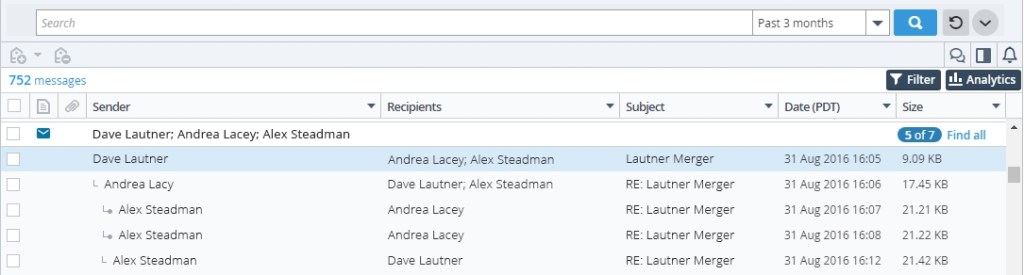
Therefore, users can click the Group by conversation icon in their search results to group messages with the same overview.threadId.
In your Archive search results, select a message and click the Group by conversation icon to group all related messages with the same overview.threadId value.
Including custom properties
To store additional properties not represented elsewhere in the request payload, use the eventFeedProperties object.
The properties you add are included in a table in the body of the archived message. As well, you can search on the properties as x-headers if you set the xheader boolean property to true.
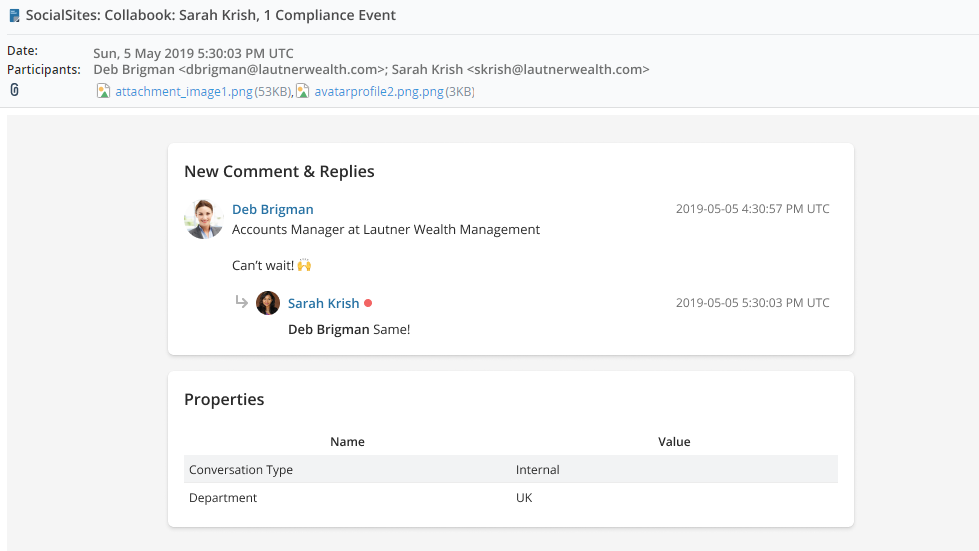
These properties encompass the entire archived message payload, rather than for specific Events contained in the request. To store additional properties for single Events, refer to the events.eventFields property in the Archiving social media posts tutorial.
Identifying duplicate messages
Improve the transparency of your requests while effectively detecting and managing duplicate submissions without additional calls or logic.
If you post a duplicate message entry to Event Archiving API, a 202 Accepted HTTP response code is returned. The response code indicates the entry is a duplicate of a previously archived entry, as shown in the following example.
HTTP/1.1 202 ACCEPTED
content-type: application/json
{
"status": "duplicate"
"reconciliationId" : “<reconciliationId>”
}
In the response, the reconciliationId corresponds to the original message entry that was successfully processed, so you can trace the duplicate to its corresponding archived EML entry.
Creating Custom Subjects
By using the subjectOverride field in the EventFeedOverview object, you can create custom subjects for your archived messages, instead of using the default subject.
If the subjectOverride is not set or null, the default subject will display in the Archive: Data type: Subtype: owner, number of Compliance Events
e.g. SocialSites: Collabook: Sarah Krish, 1 Compliance Event